Create a default name and set of initials for this device. You can also specify an email address, if desired.
Name or Handle:
3-Character Abbreviation:
Email: (optional)
Your Initials:
Your score:
Global Style Wizard!
9/17/2026
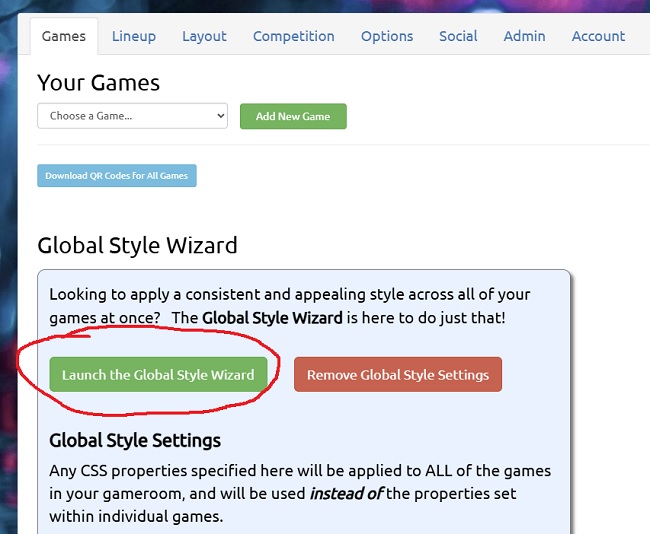
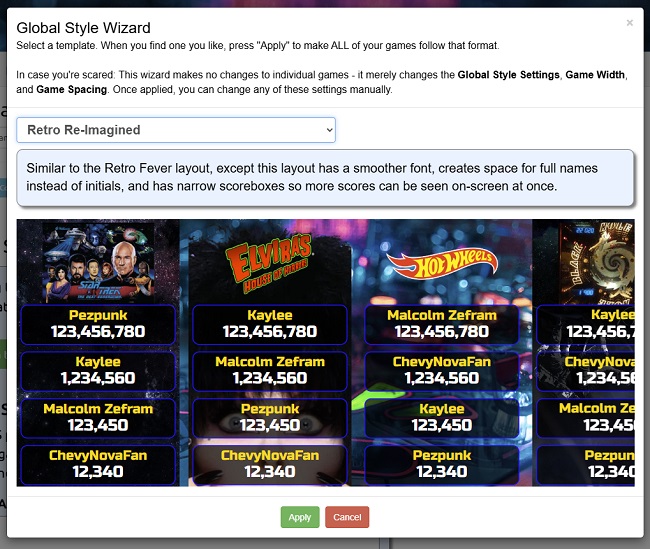
Today brings an exciting new feature: the Global Style Wizard! It allows you to apply a single, consistent style across all games in your gameroom with a single click.
This new capability should be particularly valuable for folks with large gamerooms. It's also great for anyone who is just starting out with iScored, or isn't comfortable messing
around with the CSS by hand.
You can find the Wizard on the "Games" tab of the Settings screen.
Once launched, you can pick any style and apply it to your entire gameroom.
By the way, these global settings don't overwrite the style settings for the individual games - you can remove the global settings at any time, and the games will revert back to their
own individual settings. Also, Global CSS Styles, if they exist, are now used instead of any individual game styles, as opposed to the old behavior of overwriting them
on a property-by-property basis. If this causes issues for your existing setup, contact me! We'll figure something out!
Other changes and fixes since the last update include:
Global Game Settings have been moved from the "Layout" tab to the "Games" tab, and integrated into the Global Style Wizard.
Added a new Global Game Setting to make all game backgrounds transparent.
The Game Preview window will now remain visible, even when a game isn't selected. (This is so you can adjusting Global Settings and see the results as you fiddle)
Added an option to disable the Score Editor in the main gameroom. (By default, the Score Editor is only available when logged in and viewing your gameroom from a non-public URL, but if you want to disable it, now you can).
Game titles (when they are text rather than logos) will now be centered vertically by default.
Fixed issues with Gameroom Background Image "Remove", "Repeat", and "Stretch" settings not taking effect until the user navigated away from the Settings screen.
Fixed an issue on phones with small resolution and high custom zoom levels, where the "Post Your Score!" button could be covered up by an uploaded image.
Fixed an issue where the "Overall Leaders" column did not update immediately when a score was deleted.
Fixed an issue where QR code templates were not being generated for newly-created games.
Fixed an issue where secondary scores in the gameroom were not being shown in the "time" format.
Fixed an issue where scores were not being shown in the "time" format in the Admin Approval list.
Fixed an issue where new users were being created with the wrong default settings.
Fixed an issue where some debug information was being displayed when sharing a style with the community. Whoops!
Reduced the amount of confetti thrown when a new score is achieved - it should work much better on Smart TVs and less powerful systems now!
Improved the load performance of the settings screen.
Added an optional "max" parameter to the "getAllScores" API endpoint. This parameter takes an integer, and will limit the number of scores per game returned to the value specified. "0" will return all scores.
Added "getTopScores" API endpoint, which returns only the top score for each game in your gameroom.
The iScored API submitScore function now accepts photo/screenshot attachments. (if you have implementation questions, contact me!)
Improved the load reliability of the mobile score entry screen.
Lastly, I forgot to mention in the last update the addition of two new buttons -- "Delete ALL Scores" and "Delete ALL Games" -- to the Gameroom Controls section of the Admin tab.
OK, that's it for now! As always, please let me know if you have any questions or issues. You can reach me at pezpunk@iScored.info.
Thank you for your support!
-PEZ
iScored Demo
Here is a typical iScored game room (this one is for the current
high scores for the Monday Night League at CarPool Bar in
Arlington, Virginia -- stop by some time!)
This gameroom is operating in "Public Mode", meaning you can
view scores, and you can tap on names to see a list of all the high
scores for that person, but you cannot enter new scores or modify
existing ones.
The screen automatically scrolls side to side if you don't do
anything for a few seconds.
You can make it full-screen by hitting F11 on a Mac or PC (or
using the fullscreen button on your browser). By the way, there are
easy ways to launch it in fullscreen mode automatically, and it's
designed to be touchscreen-compatible, if you're thinking of
setting it up as a kiosk in your game room.